
CSVTrax in Practice: Split First & Last Names in a CSV — To Separate Columns
⏱ About 6 min read
Your CSV has ONE column named “name”. But the next application wants TWO: “first_name” and “last_name”. Sound familiar? Let’s fix it with CSVTRAX — visually, and without writing a single line of code.
Here’s the Starting Problem: The CSV Has the WRONG Shape
Before we touch the Column Model Editor, here’s the actual input CSV. Have a look at the name column:
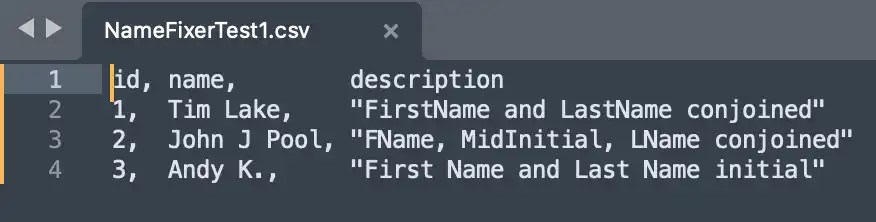
Now, technically, this isn’t broken CSV. It has three perfectly recognizable columns: id, name, and description. The problem is that name puts information we need separately into one field. The next application expects first_name and last_name. WRONG COLUMN STRUCTURE. That’s what we need to fix.
And look at the actual names. Tim Lake seems easy enough. But John J Pool includes a middle initial, and Andy K. has an initial in the final-name position. We want to preserve those details, not randomly rearrange or throw them away.
You might be tempted to split the name at the first space. Don’t. That would turn “John J Pool” into “John” and “J Pool”. Not what we want.
Our rule will be a little smarter: Take the LAST space-separated token as the last name, and EVERYTHING BEFORE IT as the first-name portion. That’s the transformation we’ll build in this first CSVTrax in Practice tutorial.
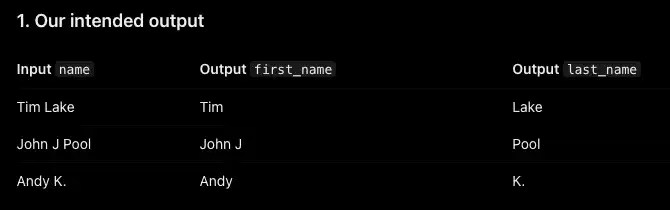
There’s something useful happening here. The original CSV has id, name, description. The finished CSV will have id, first_name, last_name, description. We’ll keep the other columns intact.
First, Meet the Column Tracks
Open Model Builder, then the Column Model Editor. In the File Selector, choose the source file. For this example the file is namefixertest1.csv.
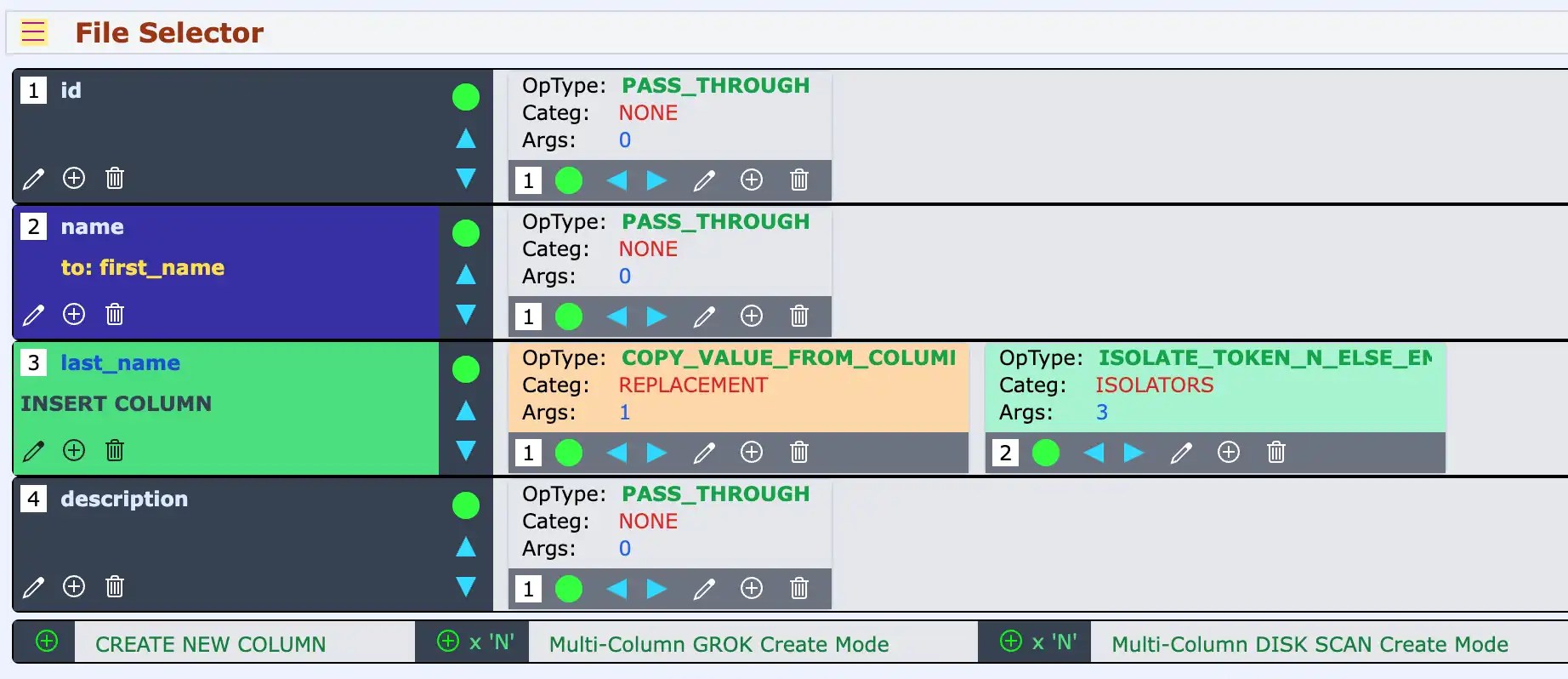
CSVTRAX shows three Column Tracks: id, name, and description. The original Field Operations are PASS_THROUGH, meaning the values simply pass through unchanged.
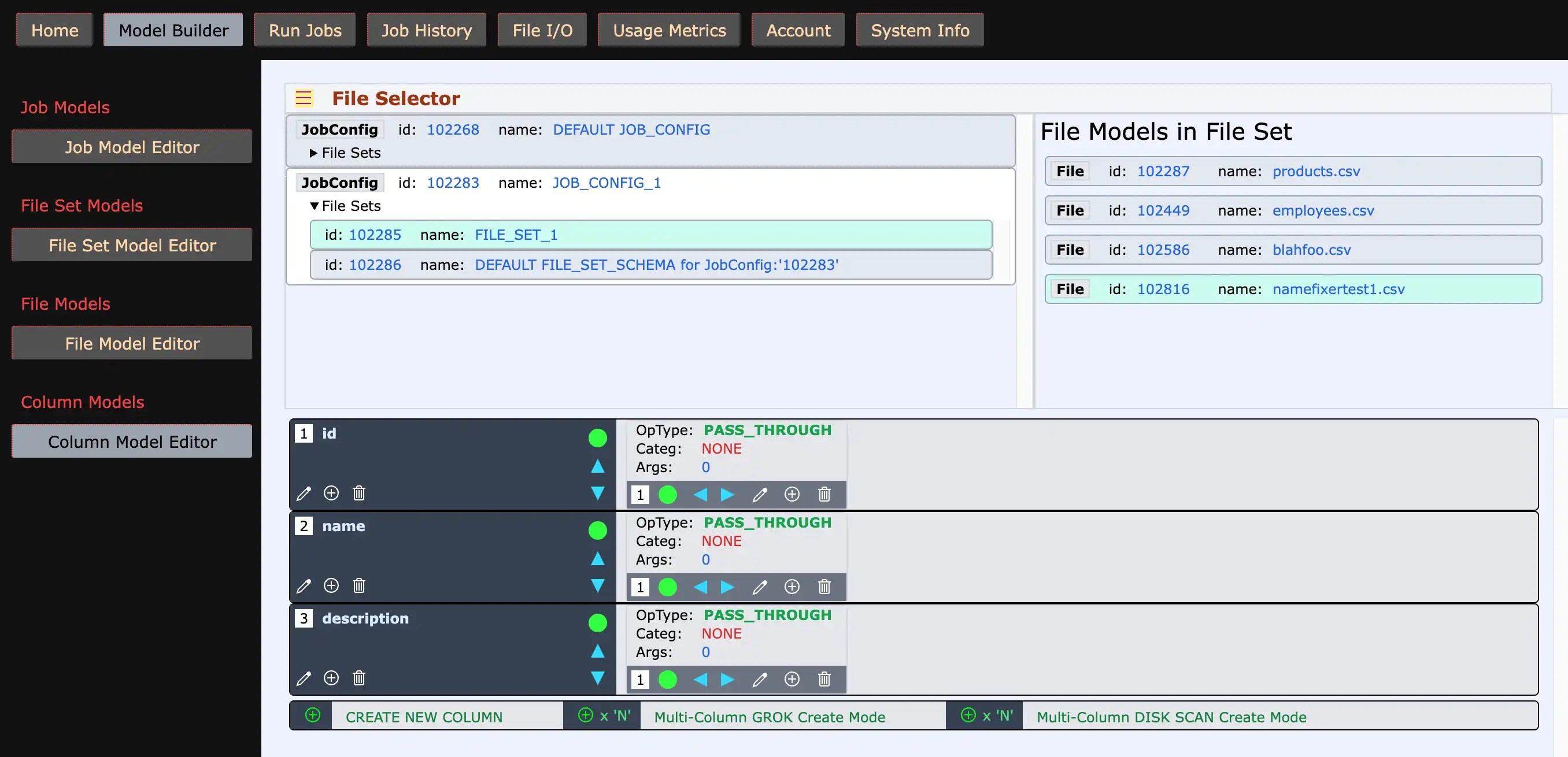
We aren’t going to tear up the entire file. We only need two changes: create a new last_name column, then change the original name column to produce first_name.
Create the New “last_name” Column
Click CREATE NEW COLUMN. In the Column Editor, give it the name last_name and choose the Column Type NEW_INSERT. Set SEQ.INDEX to 3, putting it immediately after the original name column and before description. Leave the track enabled, and save.
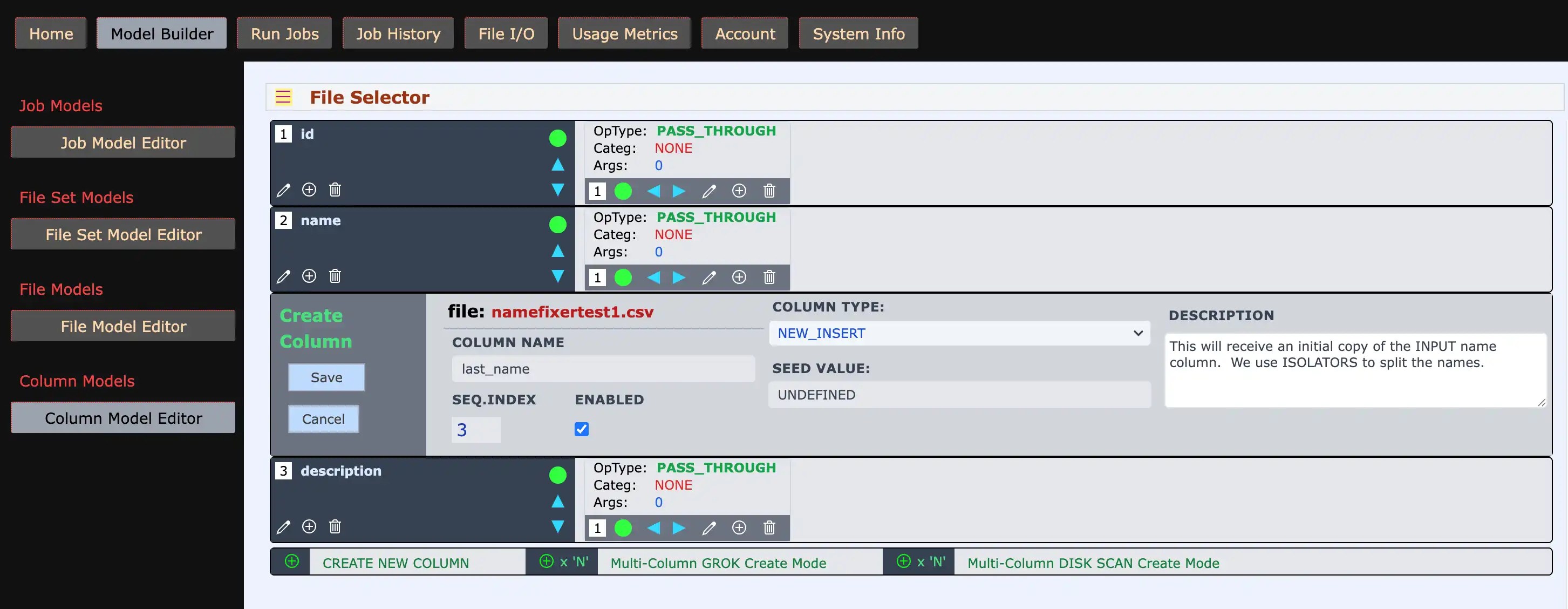
One catch: merely creating a column doesn’t tell CSVTRAX what value to put in it. That’s where Field Operations come in.
Copy the Original Name, Then Take the LAST Token
On the new last_name Column Track, create a Field Operation. Under the REPLACEMENT category, choose COPY_VALUE_FROM_COLUMN. Set its source to the existing input column name.
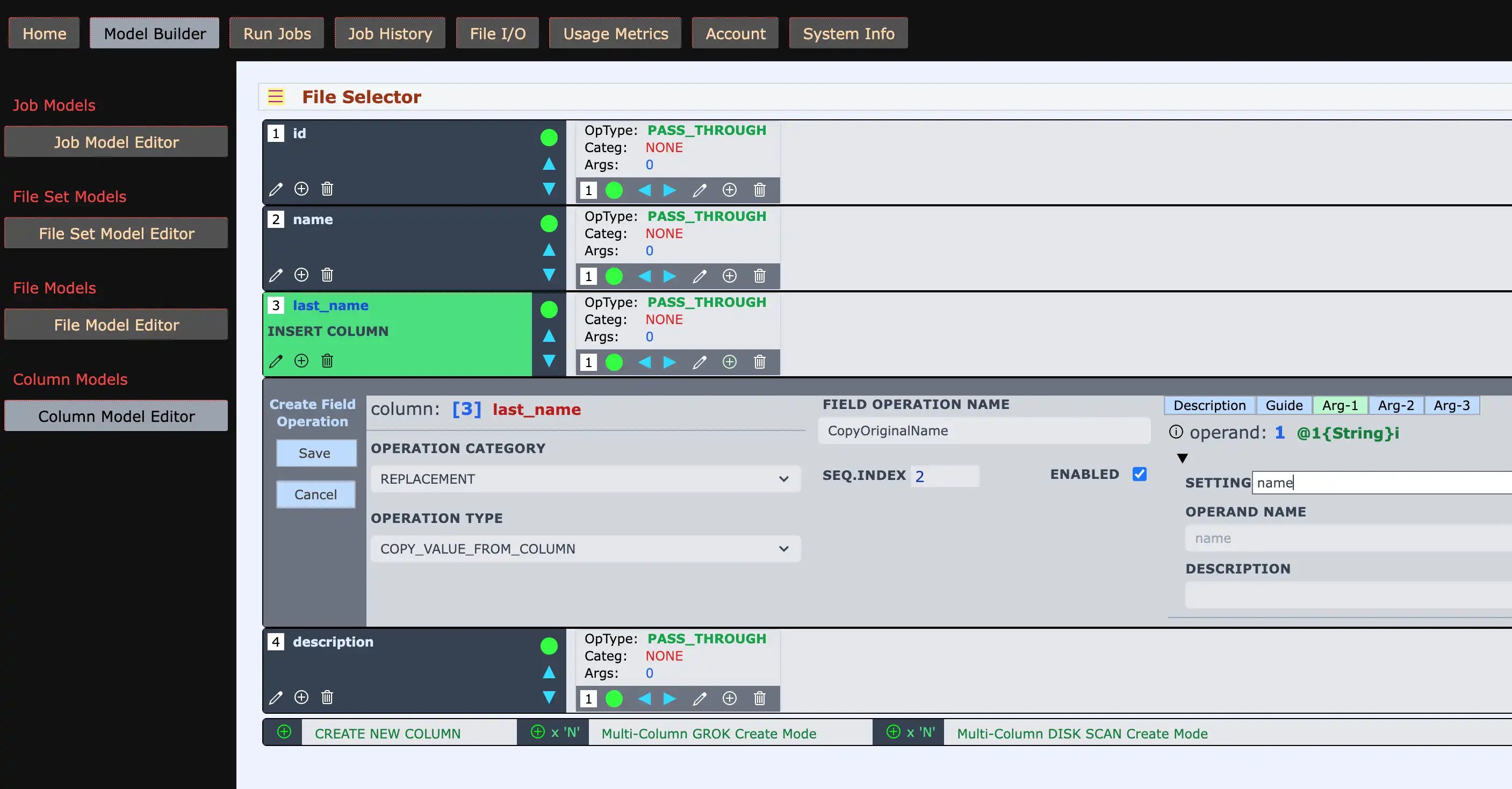
Now the new column starts with the full original name. The next operation reduces that value to the part we need.
Here’s an important distinction: name is the original input column identity. Later we’ll rename its output to first_name. That doesn’t prevent COPY_VALUE_FROM_COLUMN from reading the original input name. Input identity and output name are not the same thing.
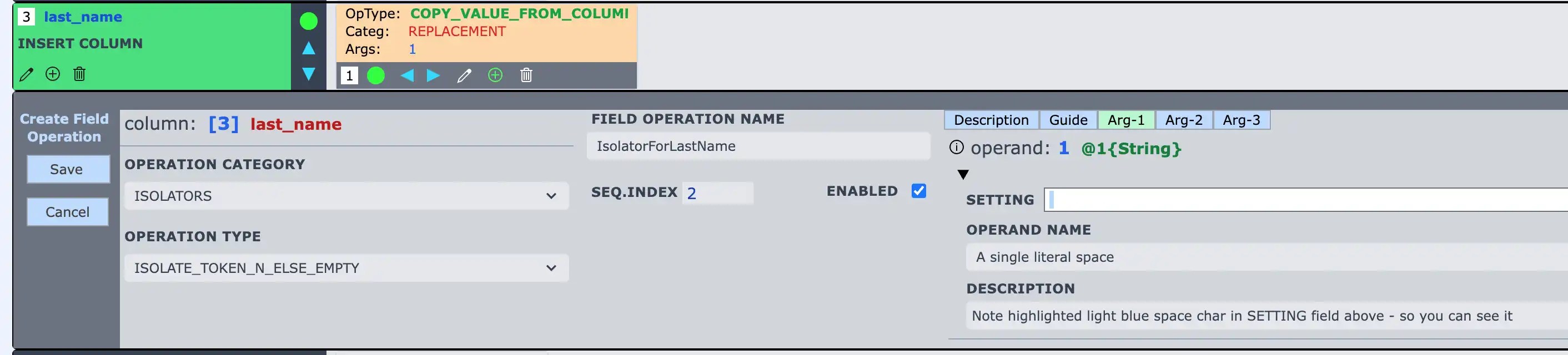
Add a second Field Operation on the last_name track. Choose the ISOLATORS category and ISOLATE_TOKEN_N_ELSE_EMPTY.
What’s a TOKEN? In this example, it’s simply a piece of text separated by a space. “John J Pool” consists of three tokens: John, J, and Pool. We want the one at the END. Here’s how:
- Arg-1: one literal space — the delimiter between tokens.
- Arg-2: -1 — count backward from the end, selecting the last token.
- Arg-3: 2 — expect at least two tokens.
- Strict Mode: unchecked — a three-token name remains acceptable.
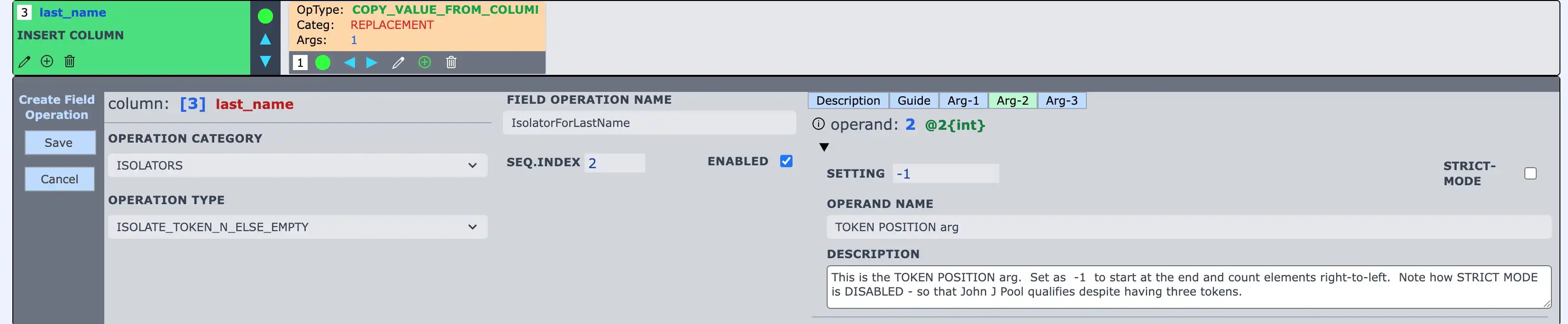
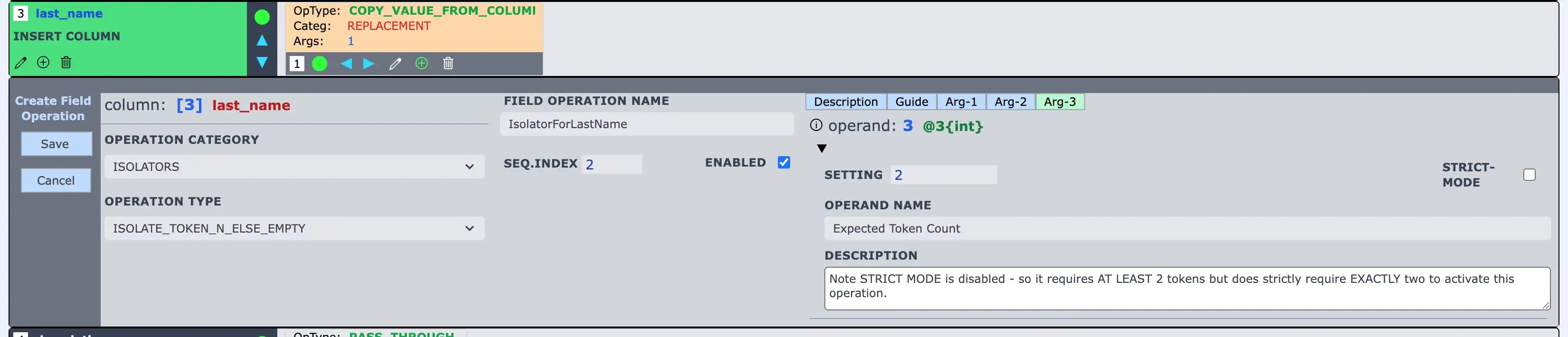
And THAT is why ISOLATORS are so useful. We didn’t need to know whether a person has two name tokens or three. We gave CSVTRAX a positional rule: keep the LAST one.
So far, Tim Lake gives us Lake; John J Pool gives us Pool; and Andy K. gives us K. Yes, the period is preserved — because it’s part of the last token.
Now Turn “name” into “first_name”
We’ve finished the NEW column. Now go back to the original name Column Track. Edit its Column configuration, choose Column Type RENAME, and set its output name to exactly first_name. Save.
This is a RENAME, not another NEW_INSERT. The original input name column is being reused as the output’s first_name column.
But at this point, simply renaming name doesn’t remove the last-name portion from its value. We still need to tell CSVTRAX which tokens to keep.
Keep EVERYTHING Before the Last Token
Configure the original name Column Track with an ISOLATOR Field Operation named ISOLATE_TOKEN_RANGE_ELSE_EMPTY.
Notice the difference: the last_name operation chose one token. This operation chooses a RANGE of tokens. Its delimiter is again a single space, and the range is:
- Start position (Arg-2): 1 — begin with the first token.
- End position (Arg-3): -2 — finish at the token just BEFORE the last token.
- Strict Mode: enabled, as shown in the demonstrated setup.
In other words: KEEP EVERYTHING EXCEPT THE LAST NAME TOKEN.

Let’s check the tricky one: John J Pool. Starting at token 1 and ending at token -2 produces John J. Exactly what we wanted. “Tim Lake” becomes “Tim”; “Andy K.” becomes “Andy”.
Now both columns have their transformation rules. One keeps the last token; the other keeps the preceding range.

Run the Job. Let’s See What Comes Out.
Now run the configured Job. When it finishes, go to Job History → Job Results Viewer. The Output File Sample Display shows the transformed CSV with four output columns:
id, first_name, last_name, description
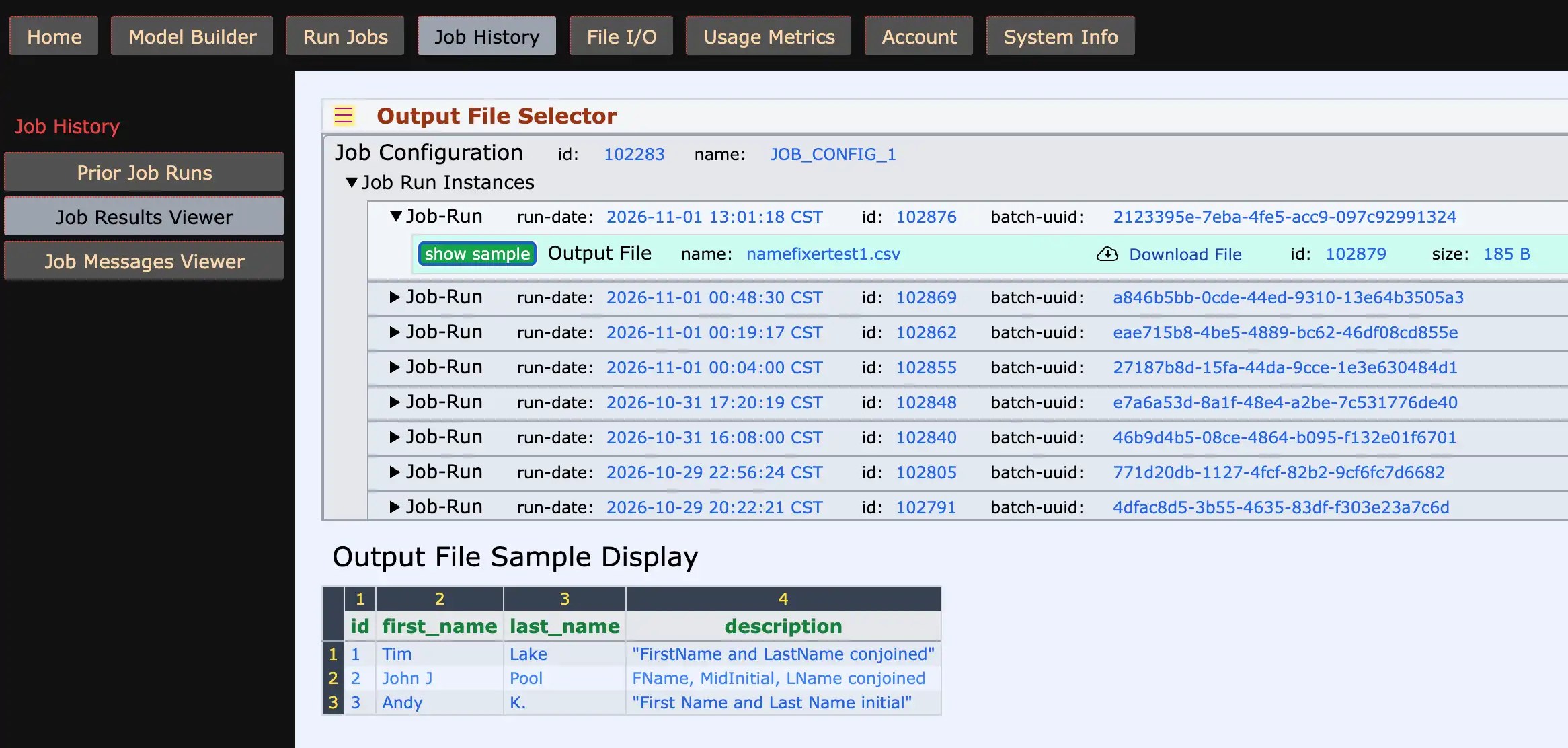
Download the output CSV if you want to inspect the actual file. Here’s what this example produced:
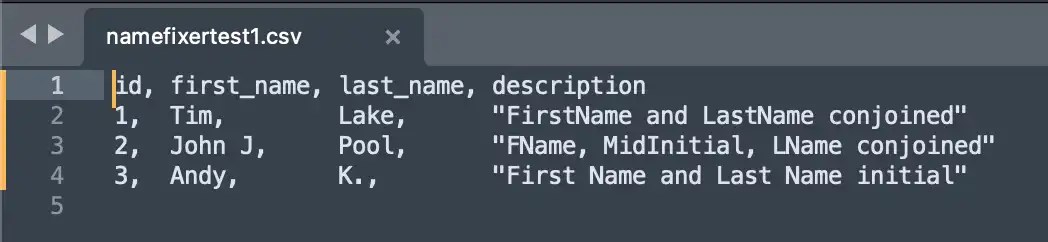
LOOK AT THAT. “John J” survived as the first-name portion. “Pool” became the last name. The existing id and description columns are still there. No scripts. No formulas. No hand-editing each row.
The Bigger Lesson: Tell CSVTrax WHAT To Keep
We did two different things in one reusable transformation. Column Types determined the output structure: one column was inserted, another was renamed. Field Operations determined the values. And ISOLATORS let us describe the pieces of text to keep by position.
One qualification matters. This is a last-token splitting rule, NOT a magic “understand every human name on Earth” button. Compound surnames, suffixes, single-token names, or inconsistent whitespace may need a different configuration or additional Field Operations. Our demonstration data uses single spaces between name tokens.
But THAT is the interesting part about CSVTRAX. Instead of repeatedly fixing individual cells, you build a Job that expresses the transformation you actually need — then apply that Job to compatible data again.
One messy CSV problem. One reusable solution. THAT’S data transformation.